Web UI

Web UI tour

The dashboard, the cluster-wide VM list, a single VM's live graphs, and the Create VM dialog.
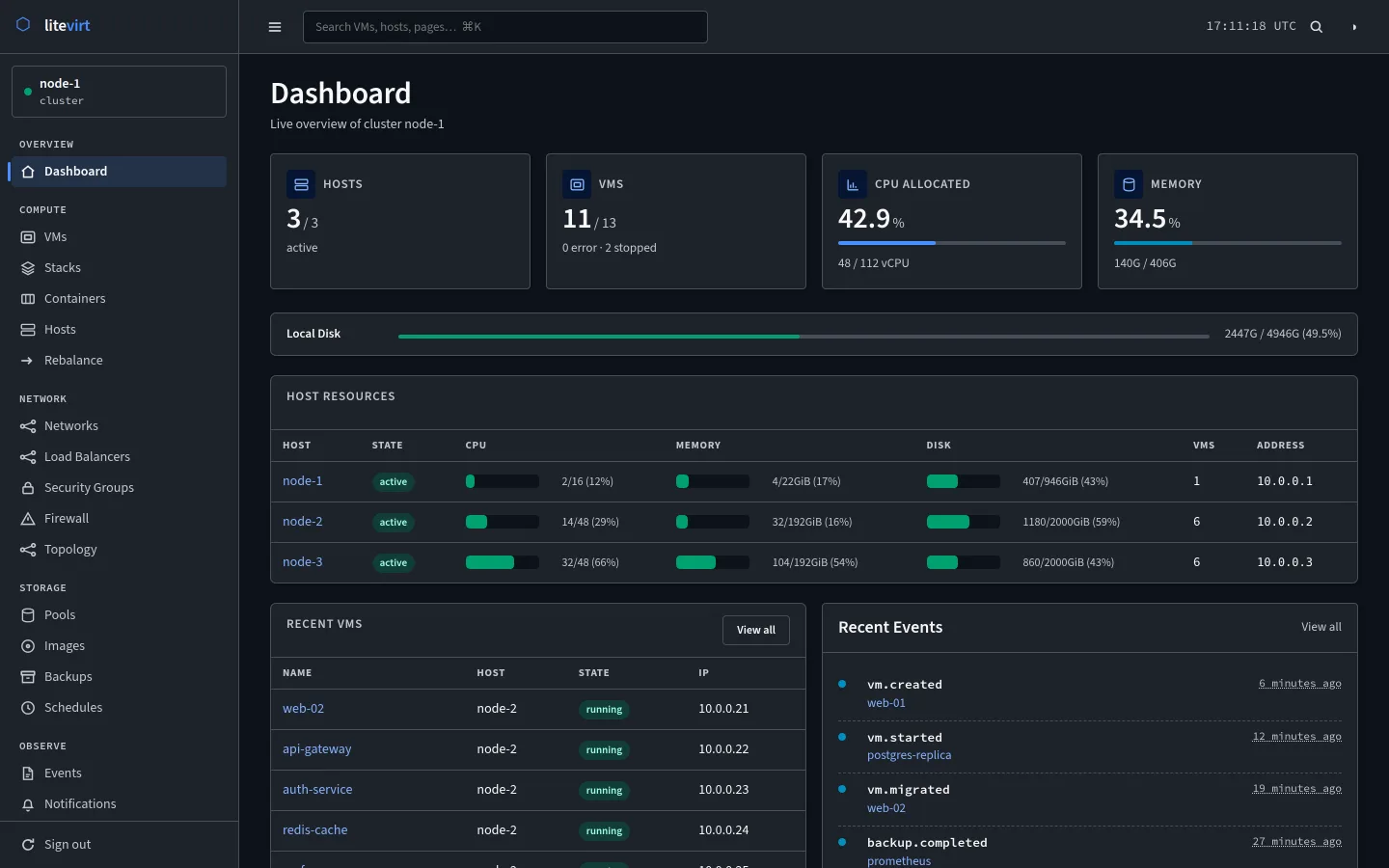
litevirt dashboard showing 3 of 3 hosts active, 11 of 13 VMs running, CPU and memory allocation, a host resources table for node-1 to node-3, recent VMs, and recent events
Dashboard. The dashboard: hosts, VMs, CPU and memory allocation, per-host resources, recent VMs, and the cluster's event stream.
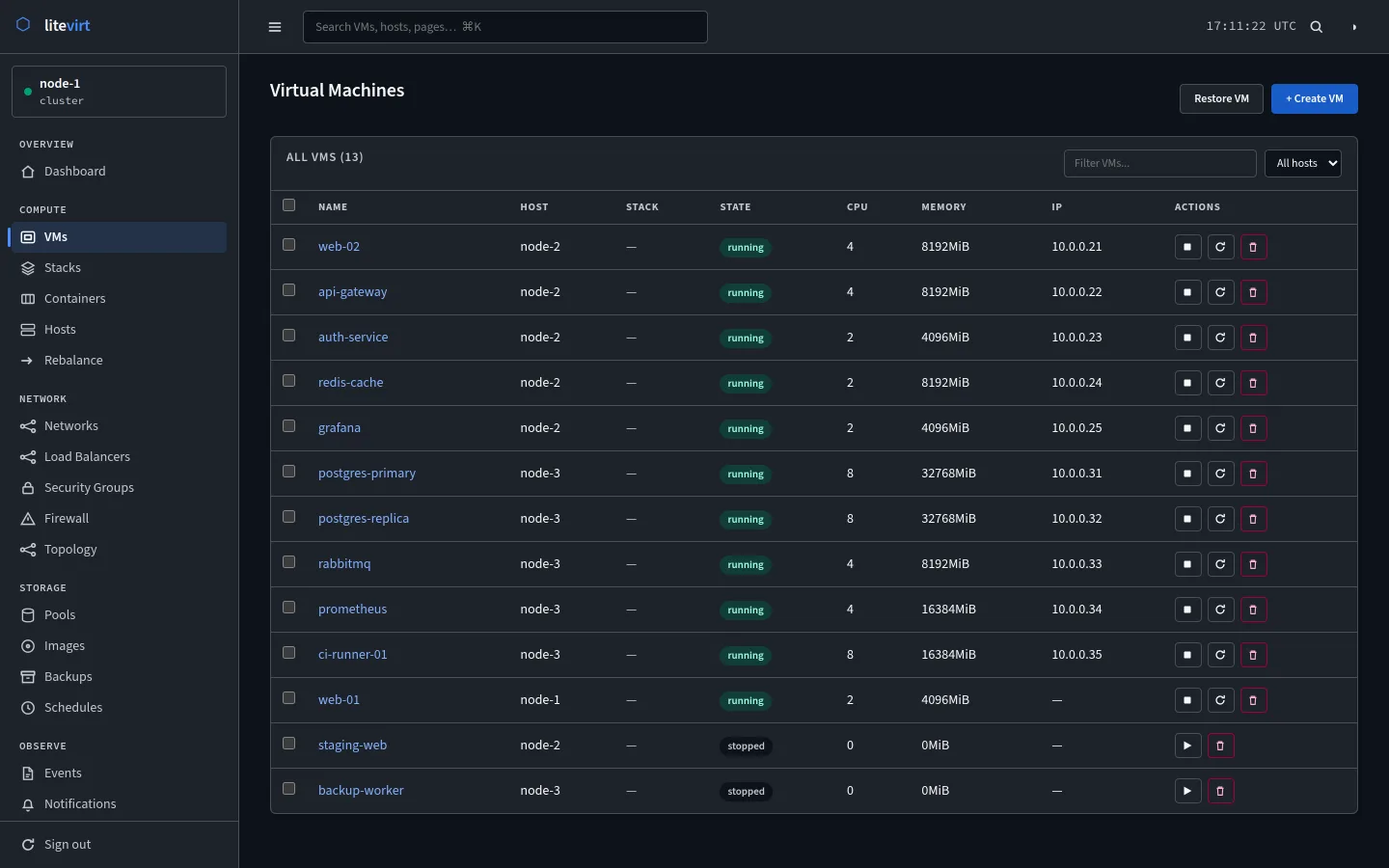
Virtual machines table listing 13 VMs across node-1, node-2, and node-3 with state, CPU, memory, IP address, and stop, restart, and delete buttons
VMs. Every VM in the cluster in one table. Filter by name or host, select several, and act on all of them at once.
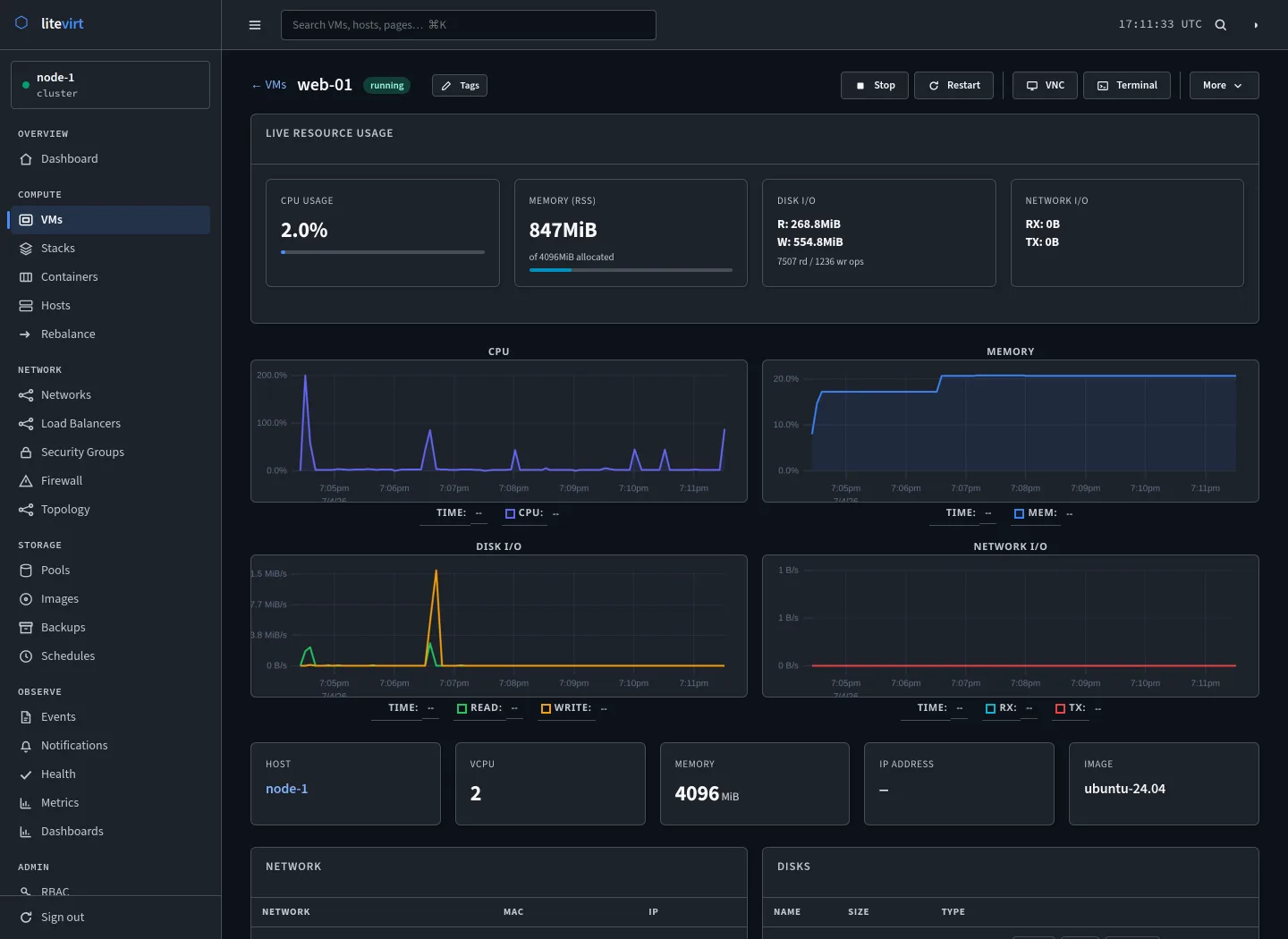
Detail page for VM web-01 with live CPU, memory, disk I/O, and network I/O graphs and Stop, Restart, VNC, and Terminal buttons
VM detail. One VM up close: live CPU, memory, disk, and network graphs, with the console and lifecycle actions along the top.
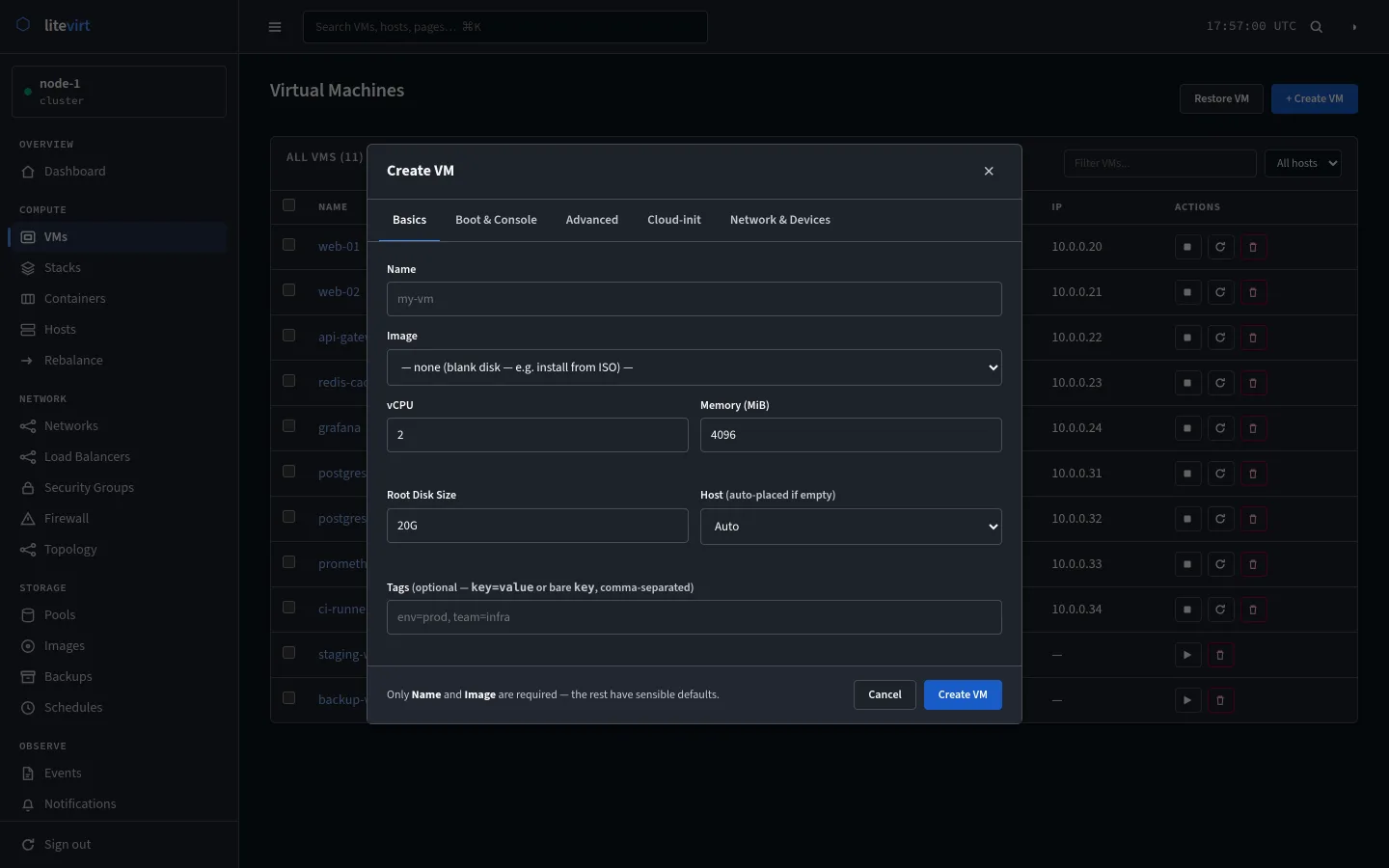
Create VM dialog on the Basics tab with name, image, vCPU, memory, root disk size, host, and tags fields
Create VM. Creating a VM needs a name and an image. Boot, cloud-init, networks, and PCI devices each have their own tab.

Where to find it

Every host serves the UI on port 7445, and each one shows the whole cluster. It is built from Go templates and HTMX, ships inside the same binary as the daemon, and needs no separate install.

Beyond these screens

The sidebar reaches the rest of the cluster: stacks, containers, hosts, the rebalancer, networks, load balancers, security groups, firewall rules, topology, storage pools, images, backups, schedules, events, and notifications. A VM’s page adds VNC, SPICE, and text consoles, snapshots, tags, and its hardware.

Sign-in supports local, OIDC, and LDAP accounts, with TOTP or WebAuthn as a second factor. The web UI guide walks through every page.